




How to Put Parental Controls on iPhone Using Apps
A few months ago, a dad shared something that stuck with me. He noticed his daughter smiling at her phone late at night, long after bedtime. At first, he thought it was harmless scrolling. Then he realized he had no idea what she was actually doing online.
Learning how to put parental controls on iPhone is no longer optional. It’s essential. According to a 2023 report by the Pew Research Center, 46% of U.S. teens say they are online almost constantly, while Common Sense Media reports kids aged 8–12 spend over 5.5 hours daily on screens.
You can put parental controls on an iPhone by using built-in Screen Time settings or installing dedicated monitoring apps that offer deeper visibility and control. Tools like mSpy, Eyezy, uMobix, Xnspy, and Parentaler help you manage screen time, filter content, and monitor activity from a single dashboard. This guide will help you take control without overcomplicating things. Explore trusted monitoring tools and expert insights with Silent Trackers.
What Parental Controls Are Available on iPhone?
81% of parents say managing screen time is a top digital concern for their children.
Before diving into setup, it helps to understand what tools you already have. iPhones include built-in safeguards designed to give parents control over device usage without making technology feel restrictive.
Here are the main iPhone parental control features:
- Screen Time Management
- App usage limits
- Content filtering
- Purchase restrictions
- Web filtering
- Privacy protections
- Family Sharing monitoring
These tools help manage screen time control, reduce online safety risks, and give you visibility into how your child uses their device.
Built-In iPhone Parental Controls You Should Know
Apple bundles several safety tools inside the Screen Time ecosystem. Once enabled, these controls allow parents to customize nearly every aspect of a child’s digital environment.
Apple reports that millions of families use Screen Time tools globally to monitor usage and set limits.
Screen Time Overview
The American Academy of Pediatrics (AAP) states that excessive screen time is associated with sleep disruption and behavioral challenges in children.
Screen Time is the control center for most iPhone restrictions. It allows you to monitor usage, set boundaries, and generate detailed reports. Once enabled, you can manage app activity tracking, usage summaries, and downtime scheduling from one dashboard.
Downtime Scheduling
Downtime lets you lock down your child’s device during certain hours. This feature is especially helpful for bedtime routines or homework hours. Calls and approved apps still work, but most distractions disappear.
Parents often use Downtime to encourage healthy digital balance habits and reduce late-night scrolling.
The Sleep Foundation (2023) reports that children who use devices before bed are significantly more likely to experience reduced sleep quality.
App Limits
59% of parents say they worry their children spend too much time on mobile devices.
App Limits help you restrict how long specific apps or categories can be used daily. You can cap social media, gaming apps, or video platforms. Once the limit is reached, access pauses automatically.
This feature is powerful for controlling social media exposure and building healthier usage patterns.
How to Enable Screen Time on iPhone
If you want full parental control access, Screen Time is your starting point. Turning it on unlocks most built-in safety tools.
Steps to activate Screen Time:
- Open Settings
- Tap Screen Time
- Select Turn On Screen Time
- Choose This is My Child’s iPhone
- Set a Screen Time passcode
Once activated, you can begin customizing restrictions immediately. This passcode prevents children from changing your settings.
How to Set App Limits on iPhone
Limiting apps is one of the easiest ways to guide behavior without constant supervision.
To set App Limits:
- Go to Settings > Screen Time
- Tap App Limits
- Select Add Limit
- Choose categories or individual apps
- Set daily time limits
You can adjust limits anytime, making it easy to adapt as your child grows.
How to Block Inappropriate Content on iPhone
Filtering mature content is essential for online safety. Apple allows deep customization through Content Restrictions.
To enable content restrictions:
- Open Settings > Screen Time
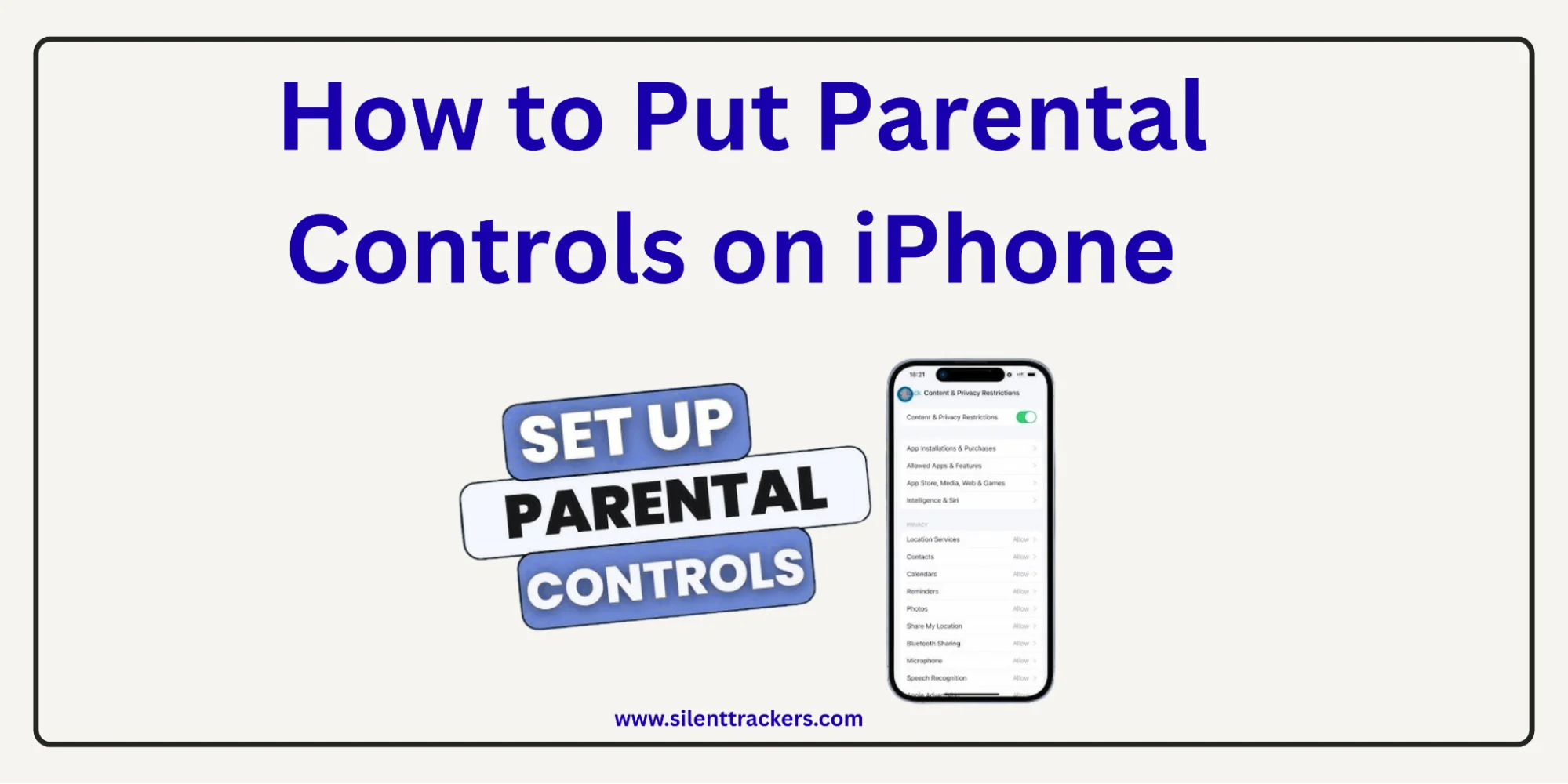
- Tap Content & Privacy Restrictions
- Toggle it on
- Select Content Restrictions
From here, you can block:
- Explicit music
- Mature movies
- Adult websites
- Unrated apps
This helps create a safer, child-friendly digital environment without constant monitoring.
How to Block Websites on iPhone
Younger children need web filtering to avoid harmful websites.
To restrict web content:
- Go to Content Restrictions
- Tap Web Content
- Choose one of these options:
- Limit adult websites
- Allow approved websites only
- Block specific URLs manually
Many parents prefer the “Allowed Websites Only” mode for younger kids. It creates a curated browsing experience.
How to Stop App Store Purchases
Unexpected purchases can happen fast, especially with games and in-app upgrades. Thankfully, Apple lets you block them completely.
To disable purchases:
- Open Screen Time
- Tap Content & Privacy Restrictions
- Select iTunes & App Store Purchases
- Set purchases to Don’t Allow
This prevents accidental charges and protects your Apple ID from misuse.
How to Restrict Gaming and Social Features
Online gaming can expose children to strangers, toxic chats, and unsafe interactions. 72% of teens say they interact with strangers online through gaming or social apps.
Apple lets you control multiplayer features through built-in settings.
You can restrict:
- Multiplayer gaming
- Friend requests
- Private messaging
- Screen recording
These controls reduce risks like cyberbullying exposure and unsafe online interactions.
How to Lock Screen Time Settings
Children often try to bypass parental restrictions. Setting a Screen Time passcode ensures your controls stay active.
To lock settings:
- Go to Settings > Screen Time
- Tap Use Screen Time Passcode
- Create a secure 4-digit code
Once enabled, only you can change restrictions.
How to Monitor Your Child’s iPhone Activity
Monitoring helps you understand behavior patterns without invading privacy. Screen Time reports provide detailed insights into daily usage.
You can view:
- Most-used apps
- Screen time totals
- Notification counts
- Website activity
These insights make it easier to adjust limits and identify unhealthy habits early.
Want real-time activity tracking beyond Screen Time? We reviewed the most reliable iPhone monitoring apps that actually work in 2026.
Use Family Sharing for Remote Monitoring
Family Sharing allows parents to manage their child’s device remotely. Once connected, you can apply restrictions without touching the phone.
To enable Family Sharing:
- Open Settings
- Tap your Apple ID
- Select Family Sharing
- Add your child’s account
After setup, you can manage remote parental controls directly from your device.
How to Put Parental Controls on iPhone Using Apps
Built-in iPhone tools are useful, but they come with limitations. If you want deeper insights, smarter alerts, and more flexible monitoring, third-party parental control apps provide a powerful upgrade. Many modern parents now rely on advanced monitoring tools that work beyond Apple’s native settings.
Platforms like Silent Trackers recommend trusted parental monitoring apps designed specifically for family safety. Tools like mSpy, Eyezy, uMobix, Xnspy, and Parentaler are widely used because they offer real-time tracking, intuitive dashboards, and stronger digital protection. These apps don’t just restrict usage. They give parents full visibility into their child’s online activity.
Why Use Parental Control Apps?
Modern monitoring apps unlock features that built-in iOS controls simply don’t provide. While Apple focuses on restrictions, these apps focus on visibility and prevention.
Here’s what advanced parental apps typically offer:
- Real-time GPS tracking with live maps
- Social media monitoring across major platforms
- Keystroke tracking for risky searches
- Call and message insights
- Smart alerts for suspicious behavior
For example, mSpy and Eyezy excel in social media monitoring, while uMobix is popular for real-time activity tracking. Meanwhile, Xnspy offers balanced monitoring features, and Parentaler focuses heavily on web filtering and safe browsing.
These applications assist parents in keeping good digital control without monitoring their child’s phone.
Step-by-Step: Using Apps to Enable iPhone Parental Controls
Most parental monitoring applications are configured in a similar manner. Installation is typically easy and guided, even if you’re not tech-savvy.
Step 1: Choose a trusted parental control app
Start by selecting a reliable solution like mSpy, Eyezy, uMobix, Xnspy, or Parentaler. Look for iOS compatibility, strong reviews, and secure login systems.
Step 2: Create an account
Visit the app’s official website and create a parent dashboard account. Choose a subscription plan that fits your monitoring needs.
Step 3: Install the monitoring configuration
Follow the setup instructions provided. Many iPhone monitoring apps use cloud syncing or secure profiles instead of complex installations.
Step 4: Connect your child’s device
Link the iPhone using guided pairing methods. Some apps use iCloud syncing, while others provide assisted setup instructions.
Step 5: Customize monitoring settings
Once connected, choose what you want to monitor:
- Calls and messages
- GPS location tracking
- App usage and downloads
- Web browsing history
- Social media activity
After setup, you can monitor everything remotely through a secure parent dashboard.
Features You Get With Advanced Parental Apps
Here’s a simple comparison between built-in iPhone controls and third-party parental monitoring apps:
| Feature | Built-in iPhone Controls | Parental Control Apps |
| Screen time limits | Yes | Yes |
| App blocking | Yes | Yes |
| GPS tracking | Limited | Advanced real-time tracking |
| Social media monitoring | No | Yes |
| Stealth monitoring | No | Yes |
| Remote alerts | Basic | Real-time alerts |
Apps like uMobix and Eyezy stand out for real-time activity feeds, while mSpy and Xnspy provide detailed reports and historical insights. Parentaler, on the other hand, is ideal for parents who want strong filtering and structured controls.
This added flexibility makes third-party apps ideal for parents who want smarter monitoring without constant manual supervision.
When Should You Use a Monitoring App?
Parental control apps aren’t always necessary, but they become extremely valuable in certain situations. Many families upgrade to monitoring apps as children grow older and spend more time online.
You should consider using an app if:
- Your child uses multiple social media platforms
- You want real-time alerts about risky activity
- You travel frequently and need remote monitoring
- You’re concerned about online strangers
- You want detailed digital behavior insights
Many parents combine Apple’s built-in controls with apps like mSpy or Parentaler for layered protection. This hybrid approach provides both structured limits and deep visibility, giving you peace of mind in an increasingly complex digital world.
Explore our expert picks for the best spy and monitoring apps trusted by modern parents.
Conclusion
If you’ve been wondering how to put parental controls on iPhone, the answer lies in combining smart tools with mindful parenting. While Apple provides basic controls, powerful apps like mSpy, Eyezy, uMobix, Xnspy, and Parentaler take protection to the next level. 70% of parents say digital safety tools improve family peace of mind.
These applications allow you to track activity, enforce screen time restrictions, and protect children from online vulnerabilities. They are simple to use, and they keep you informed about what your child views and does online.
By using trusted parental control apps and staying involved in your child’s online journey, you create a safer iPhone experience while building trust, awareness, and long-term healthy digital habits.
Ready to protect your child’s digital world? We’ve reviewed the most trusted monitoring apps so you can choose the safest solution with confidence.
FAQs
Yes. iPhones have built-in Screen Time features that allow you to restrict app usage, set age ratings, and block downloads or in-app purchases.
Go to Settings → Screen Time → Content & Privacy Restrictions. From there, you can limit app access, set time limits, and control app downloads.
Enable Screen Time, create a passcode, then use App Limits and Content Restrictions to manage which apps can be used and for how long.
Use Screen Time with App Limits, Downtime, and Content Restrictions to create a child-friendly setup that limits access to approved apps only.
Turn on Content & Privacy Restrictions in Screen Time and set Web Content filters to “Limit Adult Websites” or allow only approved sites.
You can delete the YouTube app, block it using Screen Time app limits, or restrict it by setting stricter app age ratings under Content Restrictions.