




Simple ways to use iPhone parental control for kids | Silent Trackers
Screens aren’t just entertainment anymore; they shape how your child thinks and interacts every day. What’s more concerning is that many parents don’t realize how early digital risks begin. According to Statistics Canada, over 90% of children aged 10-17 use the internet daily, increasing exposure to online threats.
A single wrong click can expose your child to harmful content within seconds.
Children in Canada are spending more time online than ever before, bringing risks like cyberbullying, explicit content, and privacy concerns. That’s where iPhone parental control becomes essential. With built-in Apple parental controls and tools like mSpy, Eyezy, uMobix, Cocospy, and Xnspy, you can easily monitor activity, set limits, and keep your child safe online.
In this guide, you’ll learn simple, practical ways to manage your child’s device, limit risks, and create a safer digital environment.
Take control of your child’s digital safety before risks turn serious by exploring trusted parental monitoring solutions with Silent Trackers today.
What You Can Do with iPhone Parental Control
iOS parental control gives you a powerful toolkit to protect your child without constant supervision. It helps you create boundaries while still allowing healthy digital use.
- Track screen time and app usage habits: With Screen Time settings, you can see exactly how your child uses their device. This helps you manage child device usage and identify patterns like excessive gaming or social media use.
- Block inappropriate apps, websites, and content: You can easily block adult websites on your iPhone and apply content filtering iPhone settings. This ensures your child only accesses age-appropriate material.
- Manage communication limits (calls, messages, FaceTime): Using communication limits on the iPhone, you can control who your child can contact. This improves child online safety on iOS and prevents unwanted interactions.
- Control downloads and in-app purchases: You can restrict app downloads and control in-app purchases to avoid unexpected charges. This is especially useful for younger children.
- Set downtime schedules for better digital balance: Set limits to limit screen time for kids and ensure they focus on school, sleep, and family time.
- Get insights into your child’s daily phone activity: Detailed reports help you understand behaviour and improve device usage safety over time.
Discover our recommended parental monitoring apps designed for smarter, safer device management.
How to Set Up iOS Parental Control Step by Step
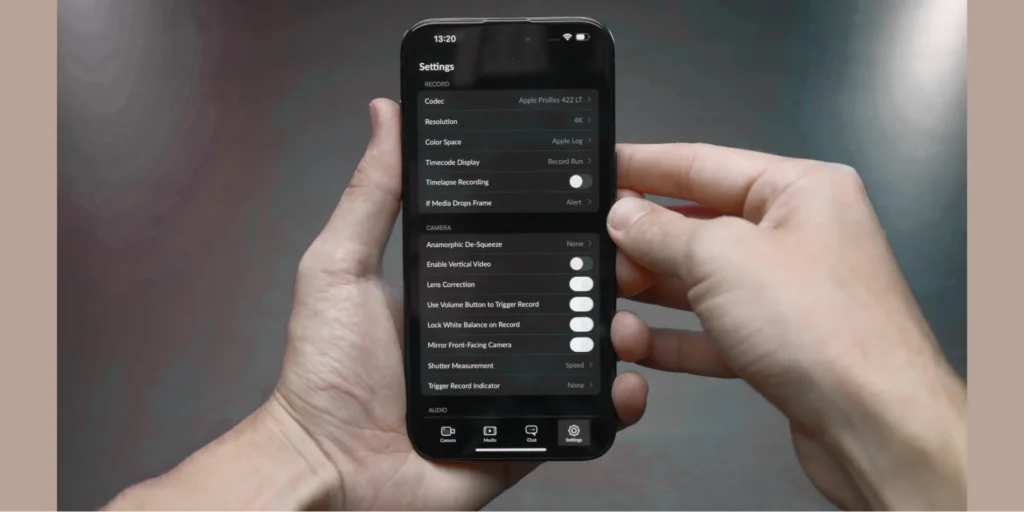
Setting up parental controls iPhone is simple and only takes a few minutes.
- Access Screen Time settings on iPhone: Go to Settings → Screen Time. This is the main hub for screen time parental control tools.
- Create a parental control passcode: Set a unique passcode to prevent your child from changing settings. This protects your iPhone’s privacy settings control.
- Set up your child’s device properly: Make sure your child uses their child’s Apple account. This allows better control and tracking.
- Link your device using Family Sharing (Canada region support): Use the Family Sharing setup to connect your device with your child’s. This allows you to monitor your child’s phone usage remotely.
- Enable essential safety features in minutes: Turn on basic controls like app restrictions, iOS, and web content restrictions right away.
Turn On Content & Privacy Restrictions on iPhone
This is one of the most important steps in setting parental controls on an iPhone.
- Activate Content and Privacy Restrictions correctly: Go to Screen Time → Content & Privacy Restrictions → Turn On. This enables full privacy controls iPhone.
- Why a strong passcode prevents bypass attempts: A strong passcode ensures your child cannot disable child safety features on Apple.
- Configure permissions for apps, location, and contacts: You can manage app permissions on iPhone and decide which apps can access sensitive data.
- Protect sensitive data from accidental exposure: Restrict settings like location sharing to improve Apple device monitoring for kids.
Compare our recommended solutions to enhance your child’s online safety.
Key Apple Parental Control Settings Every Parent Should Use
Once restrictions are active, you can fine-tune the most important Apple parental controls.
- You can prevent App Store purchases completely. This ensures your child doesn’t download paid apps or spend money without approval.
- You can also allow or block built-in apps. For example, disabling Safari helps you better control browsing through safer alternatives.
- Content filtering is another essential feature. You can prevent explicit content on your iPhone by setting age-appropriate ratings for movies, apps, and music.
- To improve gaming safety, you can restrict Game Center features, which limit multiplayer interactions and friend requests.
- Voice assistants can also be controlled. Limiting Siri prevents unsafe searches or unintended access to information.
- Privacy is critical. You can stop children from changing settings, ensuring your iPhone privacy settings control remains intact.
Additional Controls You Should Use
- Set Canadian content ratings for apps and media
- Disable AirDrop and screen recording
- Control location sharing permissions
- Manage downloads and purchases on Apple
These small changes make a big difference in overall safety.
How to Set Up Screen Time for iOS Parental Control
Understanding what Screen Time on iPhone is helps you unlock its full potential. It’s more than a timer. It’s a complete control system.
Start with Family Sharing setup, which links your device to your child’s. This allows you to manage everything remotely.
Then configure Screen Time features. You can set app limits, downtime schedules, and communication rules. This helps you control child screen time on Apple devices effectively.
You’ll also gain access to activity reports. These reports allow you to track and manage child device usage and spot unhealthy habits early.
If you have more than one child, you can manage multiple devices from one dashboard. This keeps everything organized and simple. In real use, many parents start with strict limits but later adjust them based on their child’s behaviour. A flexible approach often works better than strict control.
Advanced Apple Parental Control for Maximum Safety
Basic controls are great. However, advanced methods give deeper protection.
- Control iMessages and communication
- Manage privacy and data sharing
- Add extra parental control tools if needed
Advanced tools can even detect unusual behaviour patterns. For example, sudden spikes in usage may indicate problems. Early detection allows faster action.
For teenagers, balance is key. You want safety without removing independence. Smart use of tools helps achieve that balance.
Many parents notice warning signs only after problems appear. For example, sudden spikes in screen time, secretive behaviour, or app hiding can indicate exposure to online risks. Based on trends in parental monitoring, early intervention is key to preventing serious issues.
Layered iOS Parental Control Strategy for Better Protection
One layer isn’t enough. Combine multiple methods for better results.
- Build digital trust with your child
- Use WiFi/router-level controls
- Secure the iPhone device itself
- Use Clean DNS for safer browsing
Extended Safety Controls
- Use router filters from Canadian providers
- Block harmful sites at the network level
- Combine behaviour, device, and network controls
- Use the screen distance feature on Apple to reduce eye strain
Best Apps to Enhance Apple Parental Control
Sometimes built-in tools are not enough. That’s where advanced apps help. You can explore detailed comparisons and updated reviews through Silent Trackers to find the best tool for your needs.
Why third-party apps matter
They provide deeper insights like social media tracking and real-time alerts. They enhance Apple device monitoring for kids.
Top Apps Comparison Table
| App | Key Feature | Ease of Use | Best For | Platform | Pricing (Approx) |
| mSpy | Full monitoring | Easy | Complete tracking | iOS, Android | Mid–High |
| Eyezy | Smart alerts | Very Easy | Beginners | iOS, Android | Mid |
| uMobix | Real-time tracking | Moderate | Live monitoring | iOS, Android | Mid |
| Cocospy | Simple setup | Easy | Quick installation | iOS, Android | Low–Mid |
| Xnspy | Advanced tracking | Moderate | Detailed monitoring | iOS, Android | Mid |
mSpy offers complete monitoring, including messages and activity tracking. It’s ideal if you want full control.
Eyezy is beginner-friendly. Its simple interface makes it easy for parents who are new to monitoring.
uMobix focuses on real-time updates. You can see activity as it happens.
Cocospy is perfect if you want something quick and simple. Setup takes only a few minutes.
Xnspy provides deeper insights for parents who need advanced tracking features.
The Role of Silent Trackers
Silent Trackers helps you compare and choose the best app based on your needs. It simplifies decision-making and ensures you pick trusted tools. Always use parental control apps ethically and ensure your child is aware of monitoring, especially for older children.
If you’re unsure which tool fits your needs, Silent Trackers can help you compare features and choose the right solution quickly.
Common Issues with iOS Parental Control and Fixes
Even the best systems can have issues. Here’s how to fix them.
- Fix Screen Time not syncing between devices
- Resolve forgotten passcode issues
- Troubleshoot app limits not working
- Reset parental control settings safely
Why Apple Parental Control Matters for Your Child’s Safety
Online risks are real. Children can face cyberbullying, harmful content, and privacy threats. According to MediaSmarts Canada, many children encounter inappropriate content before the age of 13.
Without proper controls, they may access unsafe websites or communicate with strangers. That’s why child safety features on Apple products are so important.
Screen addiction is another concern. Too much usage affects sleep, behaviour, and mental health. A report by the Canadian Paediatric Society links excessive screen time to sleep and behaviour issues.
Using tools to limit screen time for kids helps maintain balance.
Key Facts
- Most children use the internet daily
- Many encounter inappropriate content early
- Screen overuse impacts sleep and focus
Imagine your child downloading a harmful app or sharing personal data unknowingly. With the right controls, you can prevent this before it happens.
Conclusion
Protecting your child online doesn’t have to be complicated. With iPhone parental control, you can create a safe and balanced digital environment without constant supervision.
Start with built-in Screen Time settings, apply smart restrictions, and upgrade to advanced tools when needed. Tools like mSpy, Eyezy, uMobix, Cocospy, and Xnspy can add extra protection by helping you monitor activity and respond quickly to risks.
Take action today. Explore solutions through Silent Trackers and choose what works best for your family. A safer digital future begins with the right choices.
FAQs
Use built-in Screen Time and Family Sharing to set limits, block content, and manage usage, then add apps like mSpy or Eyezy for deeper monitoring if needed.
Kids may guess passcodes, use new Apple IDs, or access restricted content through loopholes like web browsers or shared devices if controls aren’t fully secured.
You can use Family Sharing to track activity remotely, or use apps like uMobix or mSpy for real-time monitoring and detailed insights.
Apps like mSpy and Xnspy offer advanced monitoring features, including messages, app activity, and usage tracking.
Combine Screen Time reports with advanced tools like Cocospy or Eyezy to monitor activity, track usage, and get alerts about potential risks.