








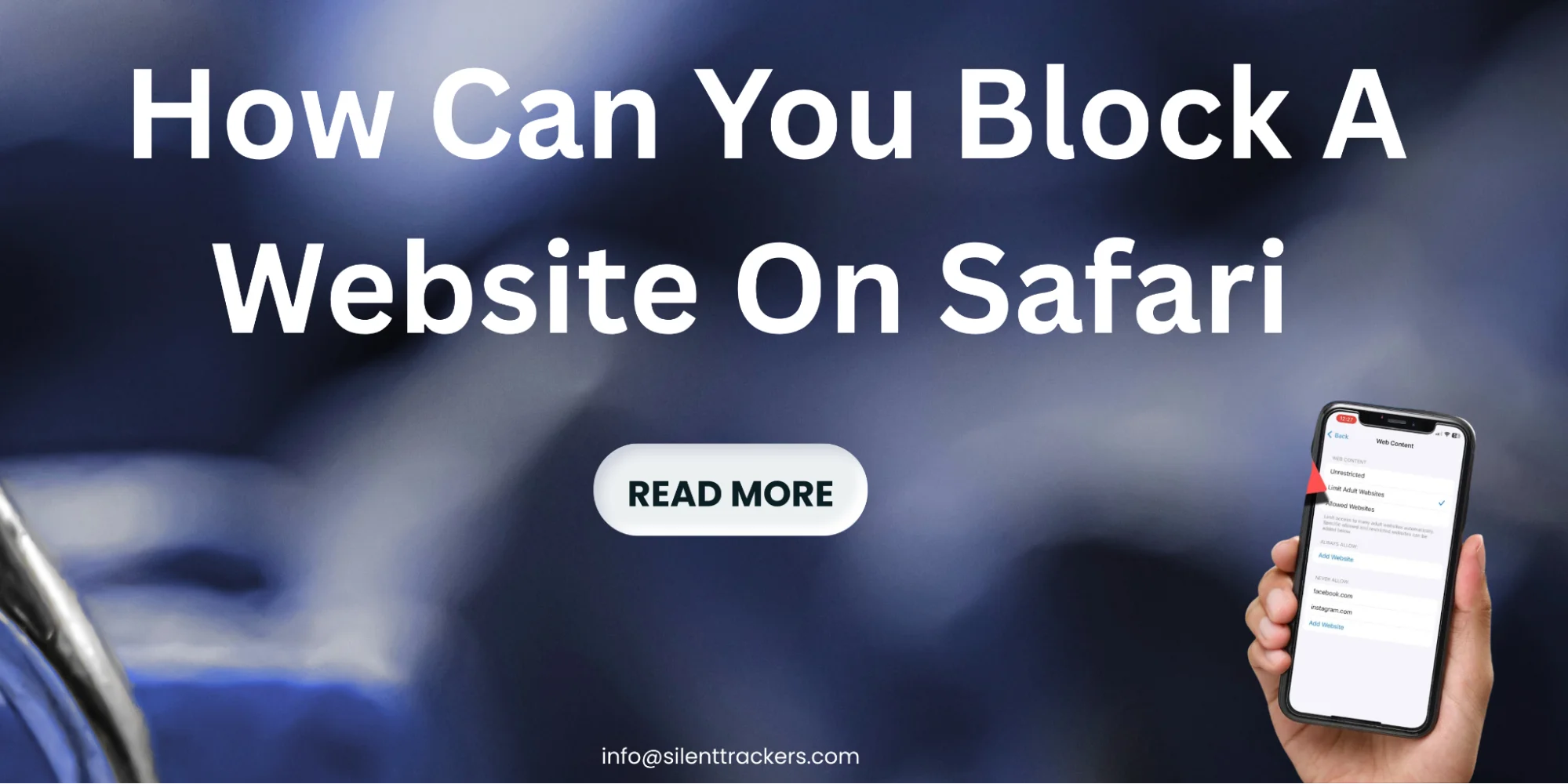
How Can You Block a Website on Safari?
The internet offers endless knowledge. Yet it also brings distraction, harmful content, and time-wasting platforms. Many people, therefore, search how can you block a website on Safari when they want stronger control over browsing habits.
In Canada, this need appears in several everyday situations. Parents want to protect kids from harmful websites. Students try to avoid online distractions while studying. Businesses aim to improve productivity online by limiting social media access. Even individuals sometimes wish to reduce screen time or create a safer browsing environment.
Recent research shows how significant the issue has become. Canadians now spend an average of about 6 hours and 5 minutes online every day across devices, highlighting how easily distractions can consume time.
Fortunately, Apple devices include multiple ways to block websites on Safari. You can rely on built-in tools like Apple Screen Time, install specialized parental control tools, configure DNS-based website blocking, or enforce router-level website blocking across your home network.
This guide explains practical methods used by families, schools, and businesses across Canada. By the end, you’ll know how to:
- Use the Screen Time website blocking on Apple devices
- Install parental control tools for Safari using monitoring apps
- Configure DNS website filtering, like OpenDNS
- Set router-level website blocking for system-wide protection
Each method offers different benefits depending on whether you manage a personal device, a family network, or a workplace environment.
Explore our expert guide to the best monitoring solutions.
Why You Might Want to Block a Website on Safari
Many people assume website blocking is only for parents. In reality, several groups rely on Safari website blocking to maintain digital balance.
A national study found that 59% of parents worry about the websites their children access online, which is why many families use parental controls and browser restrictions.
Parents across Canada often want to protect kids from harmful websites such as gambling, adult content, or violent media. Apple devices make this easier using website restrictions on iOS and Safari parental control settings. These tools help create a safe browsing environment for younger users.
Students also benefit from restricting websites. Social media platforms constantly compete for attention. Blocking them during study sessions helps improve online productivity and maintain digital focus.
Workplaces follow similar logic. Many organizations now block social media during work hours or restrict entertainment sites. This approach helps control internet usage and prevents employees from accessing time-wasting platforms.
Here are common reasons Canadians use website restrictions:
- Protect children from inappropriate content
- Prevent access to specific sites
- Avoid online distractions
- Reduce screen time
- Create secure internet browsing habits
- Control browsing across devices
When applied correctly, Safari website restrictions help users reclaim control of their digital life.
Built-In Safari Restrictions on iPhone and iPad
Apple includes powerful privacy tools inside every iPhone and iPad. These features allow users to block websites on iPhone Safari or block websites on iPad Safari without installing extra software.
These controls operate through Apple’s Content and Privacy Restrictions system inside Screen Time. When enabled, Safari automatically filters web pages based on your chosen settings.
The main advantage is simplicity. Apple designed these controls to help families control internet usage while maintaining a smooth browsing experience.
Understanding Apple Screen Time Controls
The Apple Screen Time feature is Apple’s built-in digital well-being system. It monitors device activity and allows users to limit certain behaviors.
Screen Time can:
- Block websites on iPhone
- Block websites on iPad
- Monitor app usage
- Set daily device limits
- Control downloads and purchases
Once activated, Screen Time also applies Safari web content restrictions. This means Safari automatically follows the browsing policies you create.
For example, you can:
- Whitelist approved websites
- Add website to block list
- Enable the allowed websites only setting
- Activate the limit on adult websites in Safari
These controls help create a secure browsing environment without additional apps.
Content and Privacy Restrictions in iOS
Inside Screen Time, you’ll find Content and Privacy Restrictions. This section allows deep control over Safari web content settings.
Here are the main filtering options available:
| Setting | What It Does | Best Use Case | Key Advantage |
| Unrestricted Access | Allows all websites to load in Safari without any filtering or blocking. | Adults or users who do not need website restrictions on iOS. | Provides complete browsing freedom with no content filtering. |
| Limit Adult Websites | Automatically filters and blocks adult or inappropriate websites using Apple’s content detection system. You can also add a website to the block list manually. | Parents who want to protect kids from harmful websites while still allowing normal browsing. | Creates a balanced browsing experience with automatic filtering and optional manual blocks. |
| Allowed Websites Only | Restricts Safari so that only websites you approve can open. Any other website will be blocked automatically. | Ideal for younger children, schools, or controlled learning environments. | Provides maximum protection by creating a strict system of whitelist-approved websites. |
The limit adult websites Safari option automatically filters harmful content. Meanwhile, the allowed websites only setting creates a strict whitelist.
Parents commonly combine these settings to protect kids from harmful websites and ensure online safety for children.
Devices That Support Safari Website Blocking
Safari restrictions work across multiple Apple devices. This makes it easy to manage multiple Apple devices in one household.
Supported devices include:
- iPhone: You can easily block websites on iPhone Safari
- iPad: Useful for families or schools that block websites on iPads
- Mac computers: Allow users to block websites on Mac Safari
On Mac computers, website restrictions operate through the Mac system settings Screen Time. This system can also restrict websites on macOS across an entire user profile.
Because Apple integrates these features across devices, users can maintain consistent Safari parental control settings everywhere.
How to Block Websites on Safari Using Screen Time
If you want a simple method, Screen Time provides the best way to block websites on Apple devices.
Follow the steps below to activate Screen Time website blocking.
Step 1: Open Screen Time Settings
First, open your device settings.
Navigate to:
Settings → Screen Time
This section contains Apple’s digital usage controls and browsing limits.
Step 2: Enable Content and Privacy Restrictions
Inside Screen Time:
- Tap Content and Privacy Restrictions
- Toggle the feature ON
- Create a passcode
This passcode prevents others from removing restrictions. It helps enforce digital usage policies on shared devices.
Step 3: Select Web Content Restrictions
Next open:
Content Restrictions → Web Content
Here you will find three filtering options:
- Unrestricted access
- Limit Adult Websites
- Allowed Websites Only
Choose limit adult websites Safari if you want automatic filtering.
Step 4: Add Websites to the “Never Allow” List
You can now add a website to the block list manually.
Steps:
- Scroll to Never Allow
- Tap Add Website
- Enter the domain name
For example:
- facebook.com
- tiktok.com
- youtube.com
This allows you to block social media sites on Safari during work or study time.
Step 5: Test the Blocked Website
Finally, open Safari and visit the blocked domain.
Safari will display a restriction message. This confirms Safari website restrictions are active.
Many parents use this feature to prevent access to specific sites and support secure internet browsing.
Limitations of Manual Website Blocking on Safari
While Screen Time works well, manual blocking still has a few limitations.
First, users who know the passcode could disable restrictions. This means older children or tech-savvy users might bypass controls.
Second, Safari restrictions mainly affect the Safari browser. Some people install other browsers like Chrome. In such cases, you may need a Chrome extension website blocker or broader filtering tool.
Third, manual blocking requires time. Each domain must be added individually. If you want to block hundreds of websites, this process becomes tedious.
Common limitations include:
- Users may remove restrictions if they know the passcode
- Blocking applies mainly to Safari
- Requires manual entry of each site
Because of these limitations, some families prefer advanced website filtering tools or system-wide website blocking solutions.
Using Parental Control Apps to Block Websites on Safari
Third-party apps offer deeper monitoring capabilities. These tools extend Safari restrictions and allow remote device management.
Popular parental monitoring apps include:
These tools help parents control browsing across devices and monitor digital activity remotely.
Why Use a Third-Party Website Blocking App
Third-party apps provide features that Apple’s native tools sometimes lack.
Advantages include:
- Real-time alerts
- Remote device management
- Advanced monitoring reports
- Strong Safari parental controls
These apps are often used by parents who want detailed insights into their child’s digital behavior.
Features to Look for in a Safari Website Blocking App
Before choosing software, look for these important features.
| Feature | What It Does | Why It Matters |
| Advanced Web Filtering | Filters and blocks harmful website categories such as adult content, gambling, malware sites, and unsafe downloads. | Creates a secure internet browsing environment and helps parents protect children from inappropriate content. |
| Real-Time Activity Monitoring | Displays browsing history, search activity, and visited websites directly from the monitored device. | Helps parents and employers understand browsing behaviour and quickly identify risky or distracting sites. |
| App Blocking and Usage Control | Allows you to block specific apps or social media platforms and set usage limits. | Useful for blocking social media during work or study time to improve digital focus and productivity. |
| Location Tracking | Shows the device’s real-time GPS location and movement history. | Adds another layer of digital safety, especially for children using iPhones or iPads outside the home. |
| Remote Device Management | Let’s you manage settings and apply website policies remotely from a dashboard. | Ideal for parents or businesses who need to control browsing across multiple Apple devices. |
| Custom Website Block List | Enables you to add specific websites to a block list or whitelist approved sites only. | Gives precise control to prevent access to specific sites or allow only trusted educational websites. |
| Instant Alerts and Notifications | Sends alerts when blocked websites are accessed or suspicious activity occurs. | Helps parents respond quickly and maintain online safety for children. |
| Cross-Device Compatibility | Works across iPhone, iPad, and other Apple devices connected to the same account. | Makes it easier to manage multiple Apple devices without repeating the setup process. |
These capabilities help create a controlled and secure internet browsing experience.
When Parental Control Apps Work Better Than Screen Time
Sometimes families need stronger protection than Screen Time alone provides.
Third-party apps are helpful when:
- Families manage many devices
- Parents need remote device management
- Businesses enforce enterprise website restrictions
Organizations also use these tools for mobile app management and centralized device management.
For example, schools often apply website policies across student iPads. This explains how schools block websites on iPads during class hours.
Explore our full guide to the best monitoring apps.
DNS-Level Website Blocking for Stronger Protection
Another powerful approach involves DNS website blocking.
DNS acts like the Internet’s phonebook. When you type a website address, DNS translates the domain into a server location.
Filtering DNS requests allows networks to restrict access to websites before they even load.
A popular solution is OpenDNS website filtering. Cisco’s OpenDNS allows users to block entire categories of sites.
Benefits include:
- System-wide website blocking
- Protection across all browsers
- Category-based filtering
For example, you can block:
- Gambling websites
- Adult content
- Malware pages
- Social media platforms
This method helps create a safe browsing environment for entire households.
Router-Level Website Blocking for All Devices
Router filtering provides one of the strongest protections available. Instead of configuring each device individually, you block websites directly from the router.
This creates router-level blocking across your entire network.
When activated, every connected device follows the same browsing rules.
Devices affected include:
- iPhones
- iPads
- Mac computers
- Smart TVs
- Gaming consoles
This means users cannot bypass restrictions by switching browsers.
Businesses frequently use this strategy to control internet usage in offices. It also helps parents prevent access to specific sites for children.
Website Blocking on Other Mobile Devices
Safari blocking techniques often apply to multiple mobile systems.
iOS Devices (iPhone and iPad)
On iPhones and iPads, the main tools include:
- Apple Screen Time feature
- Safari web content settings
- Content and Privacy Restrictions
These settings allow users to block sites on iPhone Safari and maintain online safety for children.
Android Devices
Android devices use different tools but offer similar functionality.
Common solutions include:
- Google Family Link
- DNS filtering apps
- Third-party parental controls
These tools help families maintain consistent browser privacy and security across platforms.
Best Practices for Effective Website Blocking
The most reliable protection usually combines multiple strategies.
Experts recommend using layered security to ensure secure internet browsing.
Combine Multiple Blocking Methods
The strongest setup combines several techniques:
- Screen Time + DNS + router controls
- Parental monitoring apps
- Device-level restrictions
This creates a powerful system-wide website blocking across the network.
Keep Parental Controls Updated
Technology evolves quickly. Regular updates ensure your filters stay effective.
Review your Safari parental control settings every few months.
Add new sites to the block list when necessary.
Educate Children About Online Safety
Technology alone cannot solve everything. Children should also understand healthy browsing habits.
Teach them about:
- Phishing scams
- Harmful websites
- Responsible digital behavior
This approach helps maintain digital focus and productivity long-term.
Final Thoughts on Blocking Websites on Safari
Understanding how can you block a website on Safari gives you powerful control over digital habits. Whether you want to protect children, improve productivity, or create a safer browsing experience, several tools can help.
Simple methods like Screen Time website blocking allow users to quickly block websites on Safari using Apple’s built-in controls. Meanwhile, advanced options such as DNS website blocking and router-level website blocking provide stronger protection across an entire network.
For families managing multiple devices, combining these solutions often works best. Many parents also use trusted monitoring tools like mSpy, Eyezy, and Parentaler to strengthen Safari parental controls, monitor activity, and enforce consistent website restrictions on iOS devices.
This layered approach helps control browsing across devices, prevent access to specific sites, and create a healthier digital environment.
Ultimately, learning how to block websites on Safari helps you reclaim control of your online space. With the right setup, you can enjoy the internet while maintaining safety, focus, and balance.
If you have questions about choosing the right tool, contact our team, and we will help you find the best solution for your needs.
FAQs
Yes. You can block websites on Safari using the built-in Screen Time website blocking feature in Content and Privacy Restrictions, where you add domains to the “Never Allow” list.
You can permanently restrict access to websites by adding them to the Screen Time blocked website list and protecting the settings with a passcode so the restrictions cannot be removed.
Yes. On iPhone, you can block websites on iPhone Safari through Safari web content restrictions in Screen Time or by using our parental monitoring app to manage the block list remotely.
Open Screen Time → Content and Privacy Restrictions → Web Content, choose Limit Adult Websites, and add the site under Never Allow to protect kids from harmful websites.
Enable Safari web content settings in Screen Time and choose Limit Adult Websites or Allowed Websites Only to control what sites can be opened.
Yes. Apple’s built-in Screen Time parental controls allow you to block websites on Safari without installing any additional apps.
Safari restrictions work at the domain level. To stop access, add the site to the blocked websites list in Screen Time so the entire website cannot load.